
< All Topics
Print

Creating App Passwords

App Passwords Are NOT Secure

App Passwords are used to BYPASS the security of your MFA on devices that are unable to use MFA (i.e Outlook on your desktop). It is EXTREMELY important that you DO NOT provide this password to ANYONE or use it to sign in online. Store this password somewhere secure.</p> <p>**Unauthorised users who obtain this App Password will have FULL control of your account**


You can create and delete app passwords from the Additional security verification page for your work or school account.

Sign in to the Additional security verification page, and then select App passwords.


App passwords page, with the App passwords tab highlighted

Select Create, type the name of the app that requires the app password, and then select Next.
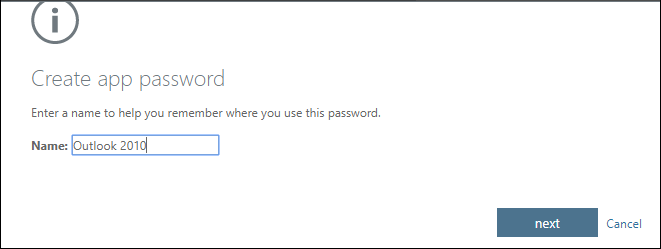


Create app passwords page, with name of app that needs password

Copy the password from the Your app password page, and then select Close.
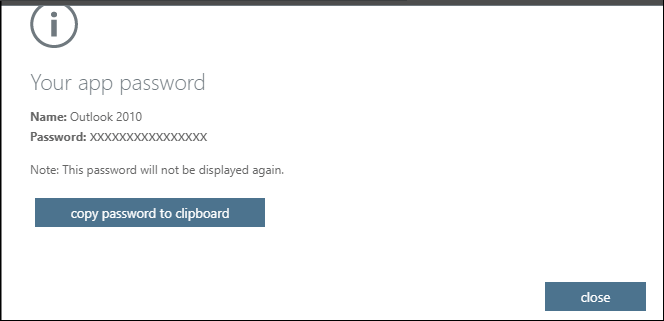


Your app password page with the password for your specified app

On the App passwords page, make sure your app is listed.
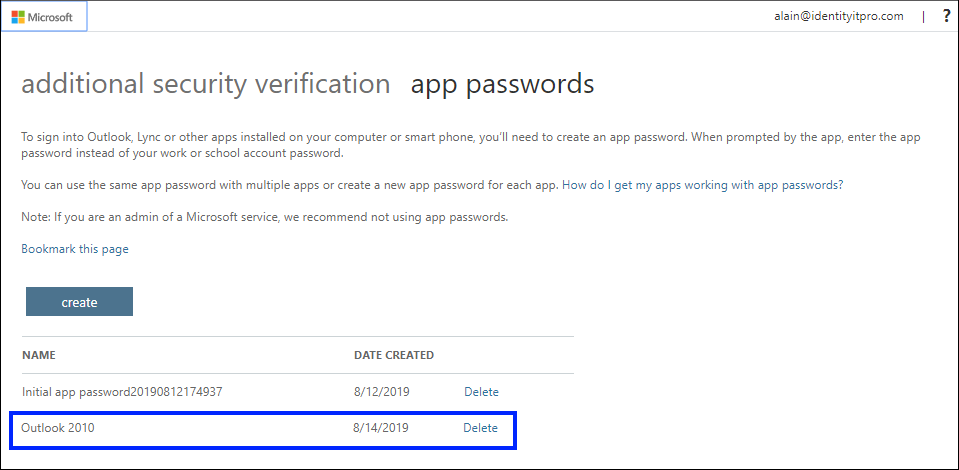


App passwords page, with new app shown in list

Open the app you created the app password for (for example, Outlook 2010), and then paste the app password when asked for it. You should only have to do this once per app.


Table of Contents