

Add IMAP Account In Outlook
Detailed step-by-step instructions
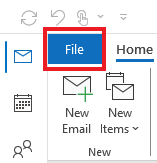
Click on the File tab in the upper-left corner of the Outlook window.
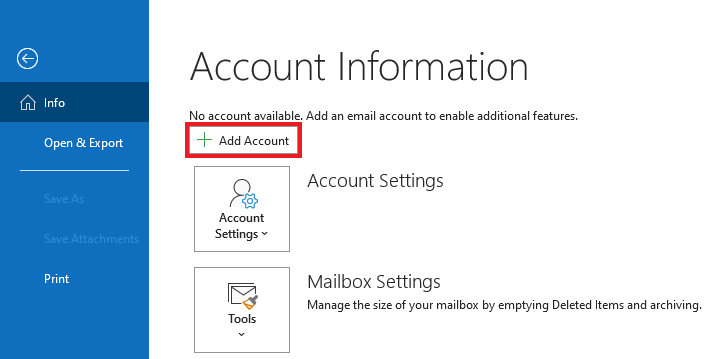
Click Add Account.
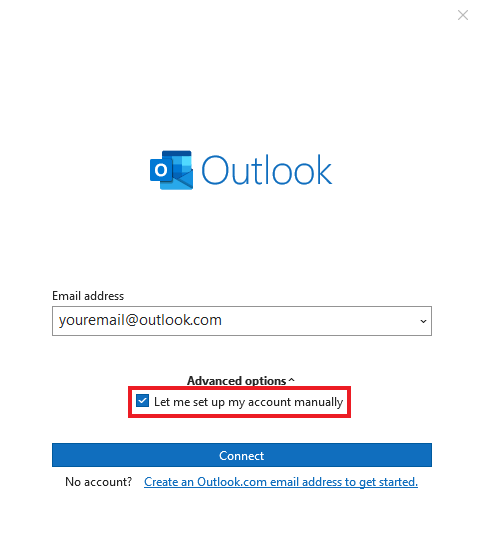
Select Manual setup or additional server types. Click Next >.
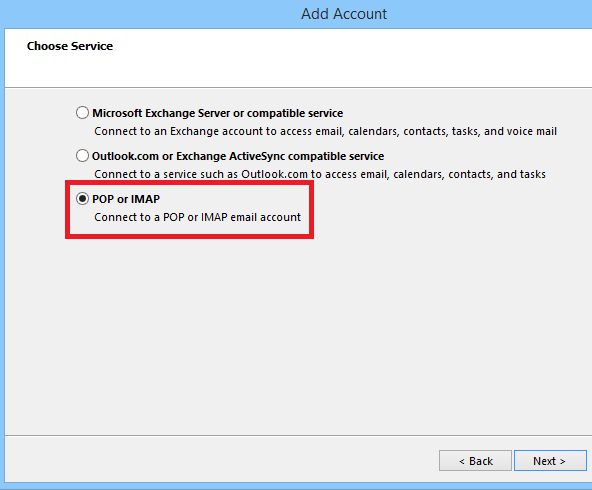
Select POP or IMAP. Click Next >.
In the Add Account window:
Enter your name and email address. (User @ Company Name)
Account Type drop-down – select IMAP.
Set Incoming mail server to mail.techstopni.uk
Set Outgoing mail server (SMTP) to mail.techstopni.uk
Enter your Login information (User Name and Password).
Click More Settings…
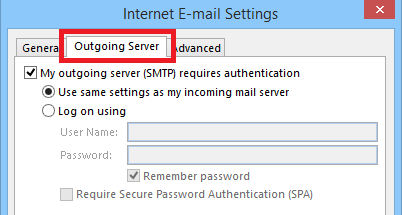
Switch to the Outgoing Server tab.
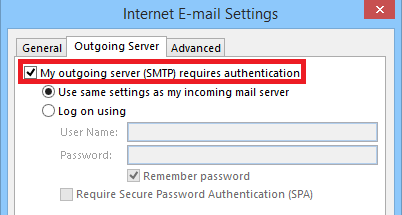
Check My outgoing server (SMTP) requires authentication.
Switch to the Advanced tab.
In the Server Port Numbers section:
Set Incoming server (IMAP) to 993.
Use the following type of encrypted connection – select SSL.
Set Outgoing server (SMTP) to 465.
Use the following type of encrypted connection – select SSL.
Click OK at the bottom of the Internet E-mail settings window.
Click Next> in Add Account window to test and save your account settings.