
“Send As” in Outlook
How to send email from a different email address than your own in Outlook.
Assuming you have ‘Send as’ privileges the email address, select the ‘Send as’ address when composing an email. The replies go to ‘Send as’ address.
Outlook Windows
- Click the Options tab, click From > More options to display the From field in your new email.
- Click the From button and select Other Email Address:
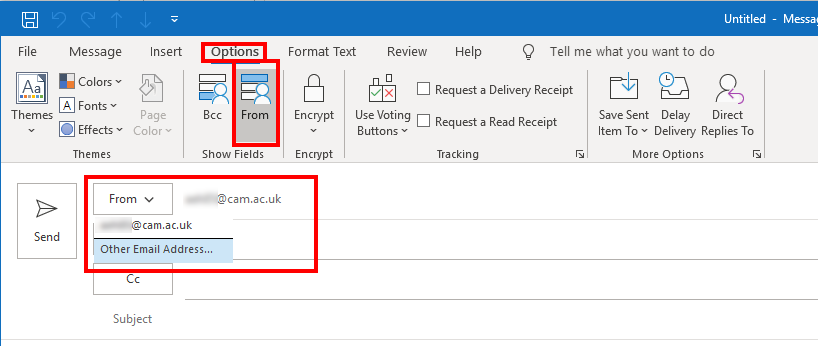
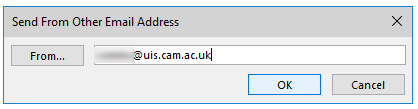
- Click on the From… button, search for and select the email address entry in the GAL (Global Address List)
- Click OK to get back to composing the email:
NB – If you can’t see the address in the GAL you may need to manually update your offline address list. Click on the Send/Receive tab in Outlook then Send/Receive Groups. Select Download Address Book.. then OK and allow the sync to complete before trying to add the address again.
Outlook for Mac
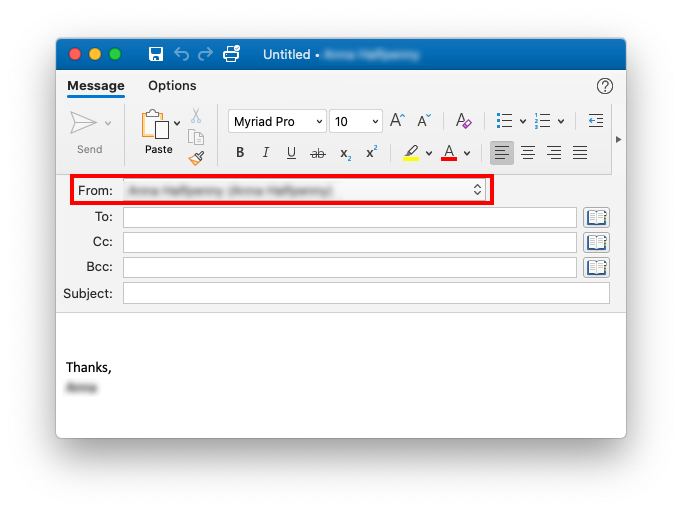
Select an email address in the pull-down menu beside the From button:
Outlook Web App
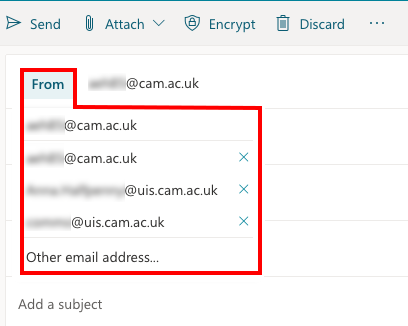
Click the From button to open the drop-down menu showing the email addresses from which you can choose to Send As:
Outlook mobile app (iOS)
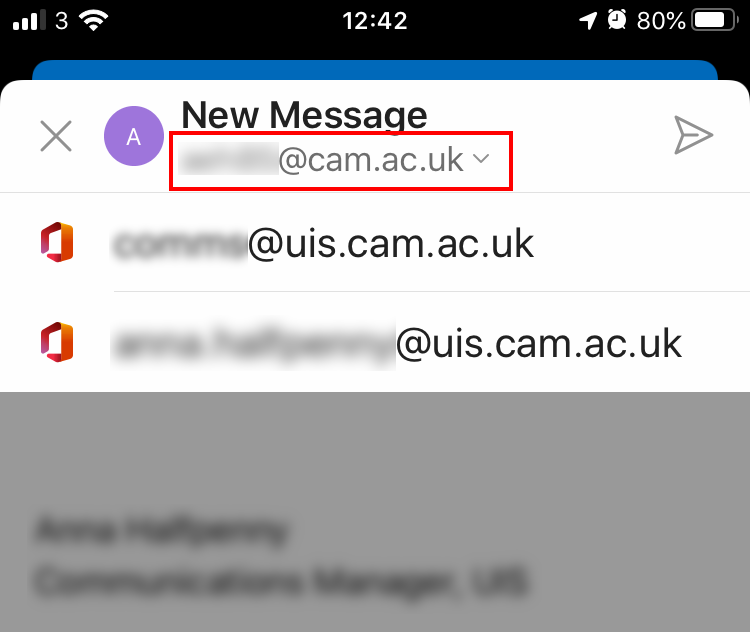
Open a new email message and tap the arrow beside your email address at the top of the screen to open the drop-down menu to choose a Send As address: